
Assign Items to Menus
Add items to menus, review variation prices and control menu availability and ordering.
Who is this article for?
Add catalog items to an existing menu, then review their availability and order. The item's variation remains the source of its selling price.
Add Items
You can also manage an item's menus from its Menu Assignments card. Review the saved associations after either path.
Check Stock Items After Assignment
Adding a stock item to a menu makes it a Hybrid item. Reopen its detail page to check the newly available selling controls, including Menu Variations & Recipes, Categories and Modifier Lists, alongside inventory.
Manage Menu Contents
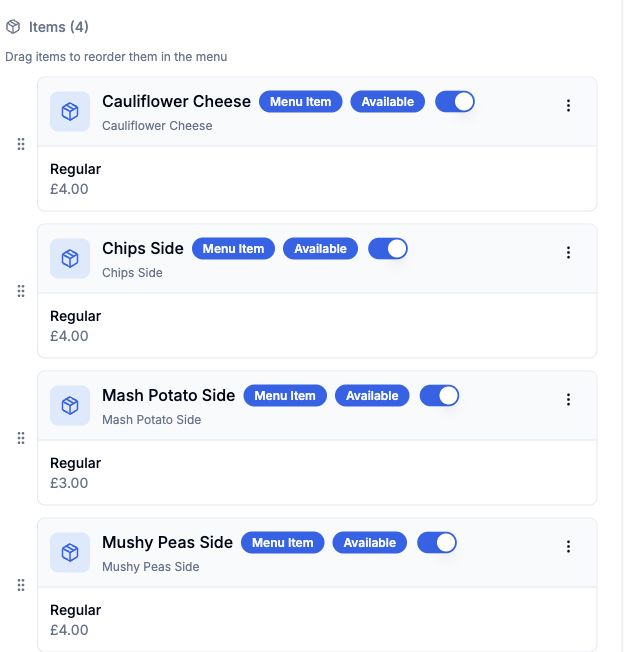
Use drag handles to reorder assigned items and Available to control whether they are offered in that menu. Review Quick Stats for the item and child-menu counts.
 View larger
Menu assignment does not create an independent selling price for that menu. Changing the selected variation's price on the item page affects its use across menus.
Edit variation selling prices Organise items and child menus Understand hybrid stock and selling