
Modifier Lists
Create reusable Modifier Lists, configure auto-import filters and pricing, preview matching variations, and attach lists to items.
Who is this article for?
Create a reusable Modifier List for choices such as toppings, sizes or extras. Attach the finished list to the menu or hybrid items that should offer it.
Create the List
Use custom or item-based modifiers according to whether an option should consume stock. Check selection rules before making a list required.
Add Auto-Import Rules
Auto-import rules create item-based modifiers from matching catalog variations.
- Open the saved list and, under Auto-Import Rules, choose Add Rule.
- Name the rule and set at least one filter: Tags, Item Types, Sale Price Range or Cost Per Item (CPI) Range.
- Set Price Adjustment. This fixed adjustment supplies the default for newly imported modifiers; it is not the item's base sell price. Negative adjustments can represent discounts.
- For new options that should consume a specific quantity, set Amount Adjustment and Unit of Measure. Units must be compatible with the linked inventory.
- Choose Enabled and whether to use Auto-Sync, then choose Create Rule.
Filter groups work together. Within Tags, an item matching any selected tag qualifies. Sale-price filtering checks variation prices; CPI filtering can match inventory at any location. A CPI match does not restrict the modifier to that location. Minimum values must not exceed maximum values.
Preview and Sync
Expand the saved rule and choose Preview Matching Items. Check the matching variations, New, Existing, compatible and skipped counts, calculated price adjustment and any unit-conversion warning. The preview can show a limited sample, so check its total matching count too.
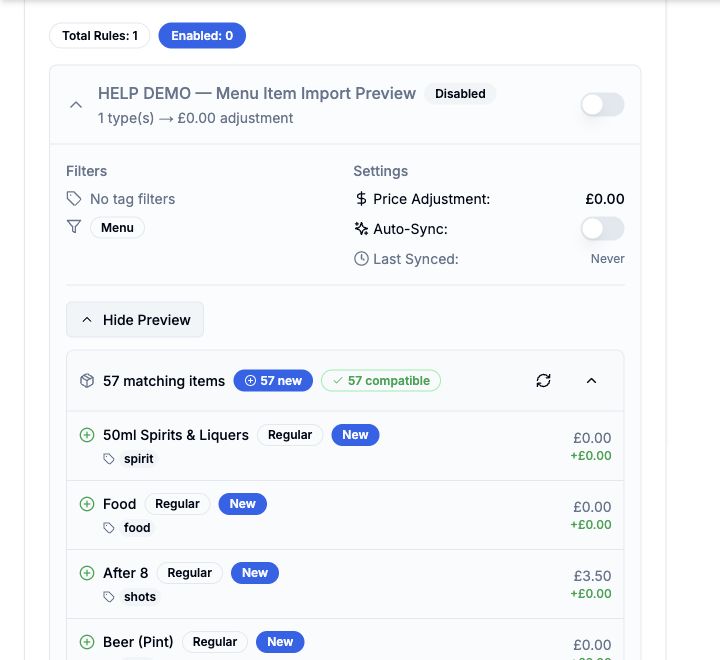 View larger
Choose Sync Now to apply the rule and review the result. Sync can add matching options or remove rule-generated options that no longer match or have incompatible units. An option already present manually or through another rule can be skipped instead of duplicated.
Rule pricing and quantity settings are defaults for new imports. Existing imported options keep their price and quantity edits, so review those options separately after changing the rule. With Auto-Sync enabled, an enabled rule responds to catalog item creation, updates and deletion. Recheck the preview after changing filters or units.
Attach the List to Items
Open a menu or hybrid item and use its Modifier Lists card. One list can serve multiple items, and an item can use multiple lists. Importing options into a list does not itself attach that list to sellable items.
Attach and reuse Modifier Lists Choose a modifier type and consumption quantity