
Create a Purchase Order
Create a purchase order from an invoice upload or a blank order, then review the validation panel before processing it.
Who is this article for?
Create a Purchase Order from supplier paperwork or enter it manually, then review the matched lines before submitting stock updates.
Start the Order
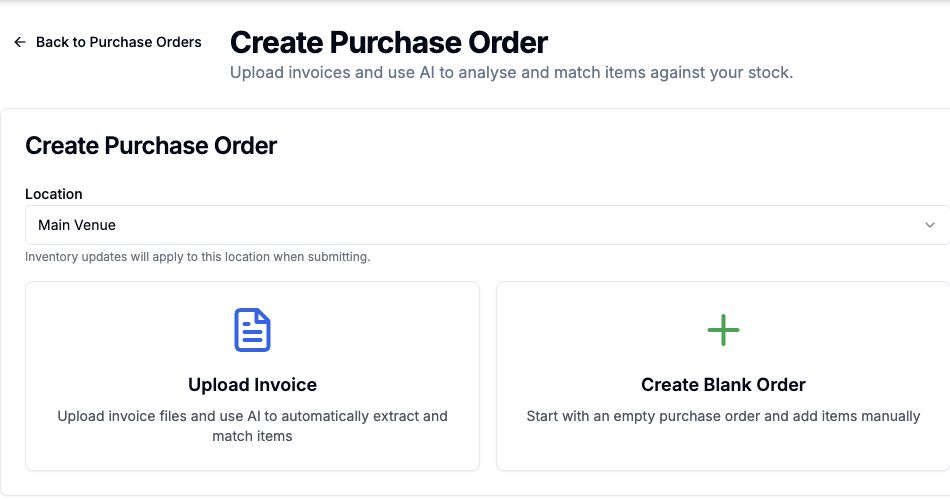 View larger
Add Pages and Items
A blank order starts with No Pages Yet. Choose Add First Page to open the working editor.
Review Supplier Name and Invoice Date, then add or match the items on each page. You can upload invoice pages and add further pages for a multi-page document.
For uploaded invoices, check extracted quantities, prices and catalog matches. Document processing does not replace your review of the supplier invoice.
Validate and Submit
Review Validation Status and resolve incomplete or incorrect lines. Confirm the receiving location and all pages before choosing Submit Purchase Order.
Submission processes the order's inventory updates. Do not submit a duplicate order simply because an upload or processing step is still loading; review the existing order and its status first.
Find an Existing Order
Use state tabs, supplier or order-number search, location and invoice-date filters on Purchase Orders. Open the matching order to continue its review.
Prepare stock items for invoice matching Check physical stock with a Stock Take