
Chat Interface Overview
Start chats, use BI Analysis, attach files and reopen conversations in AI Assistant.
Who is this article for?
Open AI from the sidebar to use Crunchy on the AI Assistant page. You can ask about business data, request an export or work through an operational question.
Start a conversation
Choose a starter prompt or type your question in the composer.
Review the answer and any supporting data or files before acting on it.
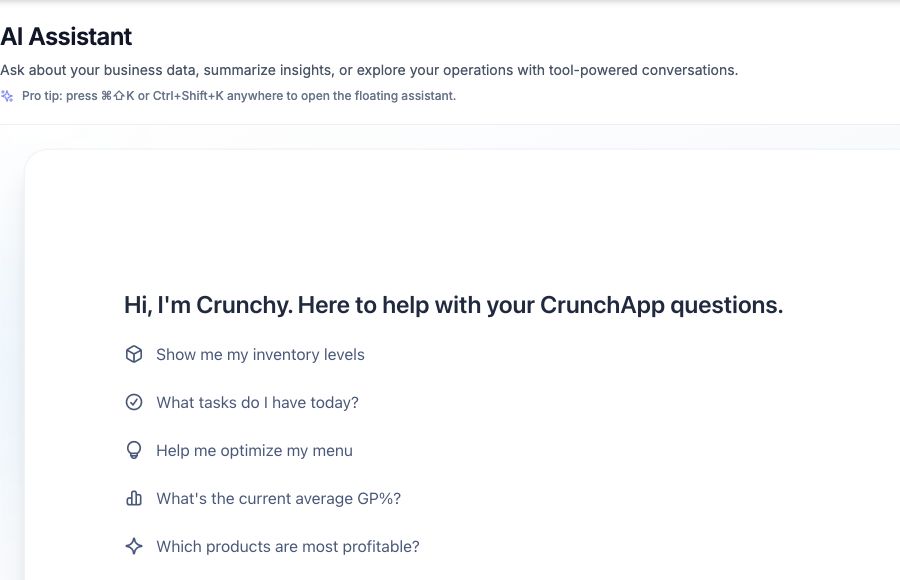
The general start screen offers five prompts:
- Show me my inventory levels
- What tasks do I have today?
- Help me optimize my menu
- What’s the current average GP%?
- Which products are most profitable?
Prompts can change with the page context. A prompt is a starting question; available answers depend on your plan, connected services and records.
 View larger
Use BI Analysis for reporting questions
The composer includes BI Analysis for questions about profitability, sales, pricing and stock value. The chat can show a BI Specialist badge while that mode is active.
Analytics contexts use prompts about average gross profit percentage, profitable products, underpriced products, strong days and hours, and current stock value. Include a date range and location rather than assuming every report uses the same filters.
Attach a file or download a result
The composer supports PDF, images and CSV or Excel spreadsheets, with up to five files per message and a 10 MB limit per file. Say what you want the assistant to do with the attachment.
When Crunchy creates an export, open the file’s download link in the response. For a till-sales spreadsheet, use Sales Orders > Import Orders to review and approve the import before it creates live orders.
Return to a conversation
Use Conversation history to reopen earlier threads. Choose New chat for a different task or topic.
You can also open the floating assistant from the dashboard chat bubble or with Cmd+Shift+K on Mac and Ctrl+Shift+K on other keyboards.
Meet Alex and Crunchy
Tips for better AI responses
Export and download reports