
Read Your Weekly Profit Control Report
Read your week’s sales, product margin and record checks, and review the shopping list for the week ahead.
Who is this article for?
Your weekly Profit Control report brings sales, theoretical product margin and record checks into one read. Its weekly shopping list gives you a practical starting point for the next supplier order, based on forecast demand, recorded stock and recent purchasing evidence.
Reports are included in OPS and Full Crunch. The contents depend on your connected sales, costs and operational records.
Find your report
Sign in to Crunch and open Business Files at /dashboard/files.
Find the Weekly Profit Control reports or Approved Profit Control reports section for your organisation.
Choose the week you want and select Open interactive report. Check the venue, reporting period and scope before comparing the figures.
Only approved, published reports appear here. If you do not see a report, check that you are in the right organisation. An empty list means no approved report is available for that organisation yet; contact the Crunch team if you need help.
 View larger
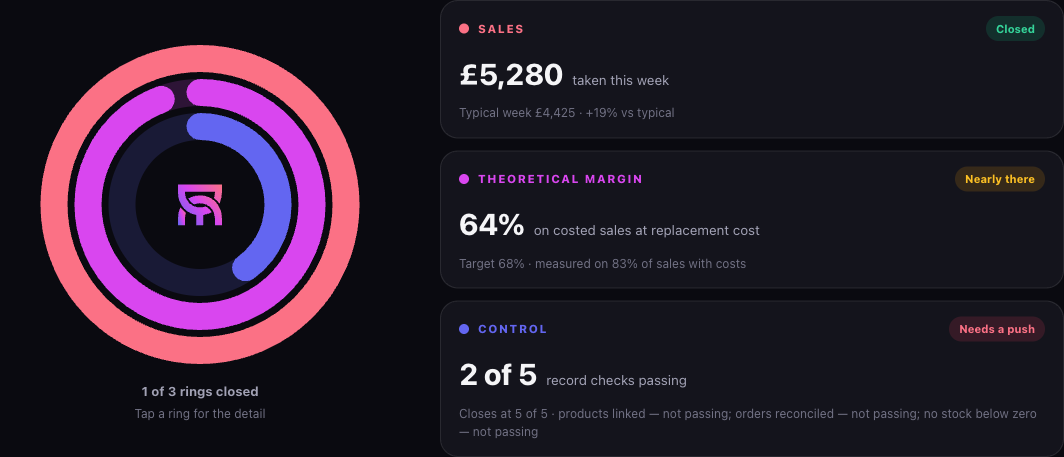
Read the three signals
Sales: what kind of week was it?
Start with the week’s takings and the comparison shown in the report. A typical-week comparison helps put the total in context. Look at the period and scope: a different set of locations or a partial week will change what the comparison means.
Then look at the detail behind the total. Did order volume change? Did customers spend more per order? Did a different mix of products sell? These are different questions, even when the headline total looks similar.
Product margin: what do those sales leave after ingredient costs?
Theoretical product margin connects sales to the replacement ingredient costs available in Crunch. Read it alongside cost coverage, which shows how much of the sales picture has evidenced costs.
A margin based on partial coverage does not represent all your sales. A missing cost is a gap to resolve, not evidence that an item is especially profitable.
Note
Theoretical product margin is not the amount left after every business expense. It does not give you a complete view of labour, rent, utilities or other overheads. Use the report’s labels and coverage when making comparisons.
Control: how reliable are the records behind the report?
The control signal concerns your records. It is not a score for your team or a promise about the business’s financial health. The checks cover:
- Products linked — sales and product records can be connected.
- Costs evidenced — the costs used have supporting records.
- Invoices captured — purchasing documents are recorded.
- No stock below zero — negative stock needs investigation.
- Orders reconciled — sales orders in Square and Crunch agree.
Follow the detail for any check that needs attention. Correcting a missing ingredient cost or an unreconciled order makes the next reading more useful.
Turn the reading into work
Pick one or two priorities from the report. Find the underlying recipe, item, supplier order or stock-take record; check it; then give the follow-up an owner. Do not change selling prices or quantities solely because a headline signal changed.
Crunchy can help you explore the records in your workspace. Start with a focused operational question such as Show me my inventory levels or Show me pending stock takes, then name the location you mean. Sales and menu tools depend on your plan. For a record change, review the relevant workflow and confirm what you want to do.
Review your weekly shopping list
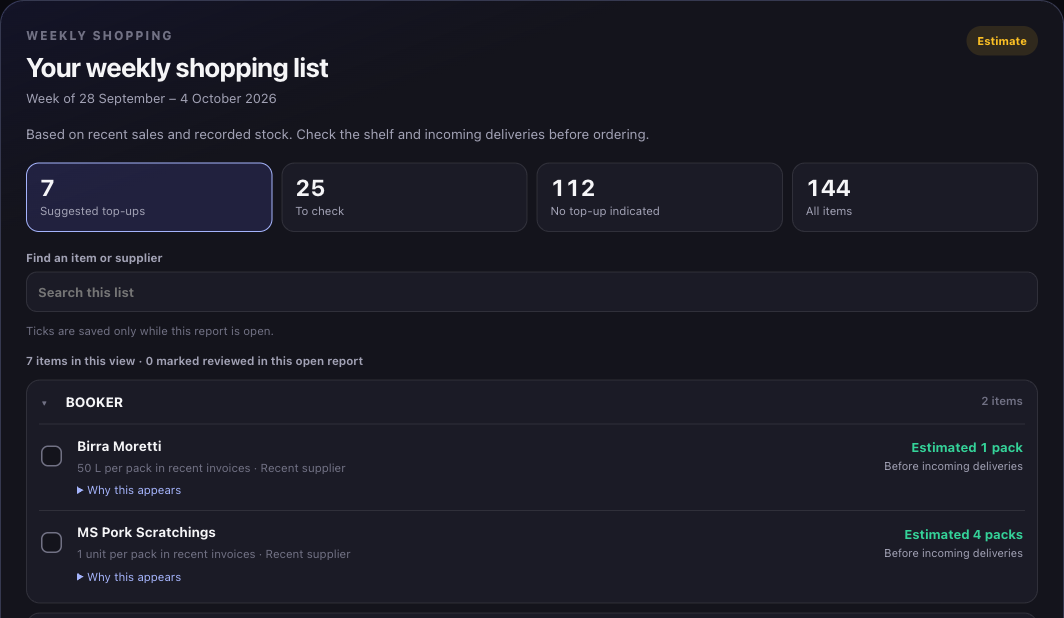
The Your weekly shopping list section shows its own planning week. That can differ from the sales week above: a report for 21–27 September may help plan shopping for 28 September–4 October.
 View larger
Start with Suggested top-ups. These are estimated shortfalls with usable recent purchase-pack evidence. Read the estimated packs alongside the pack size.
Open To check for uncertain stock, pack information or small gaps that need checking before you buy. No top-up indicated means recorded stock covers the calculated requirement; it is not a guarantee that nothing else is needed.
Use Find an item or supplier to search the list, then open the relevant supplier group. Supplier hints come from recent invoice evidence; check them before ordering.
Expand Why this appears under an item. Review its expected usage, recorded stock and shortfall, together with the purchase-pack evidence where available.
Check the shelf and incoming deliveries. Mark an item reviewed when you have checked it, then prepare the supplier order through your normal purchasing workflow.
Note
The list shows estimates before incoming deliveries. It does not place orders. Review ticks are kept only while that report is open; they are not saved as a purchasing record or persistent manager feedback.
Keep Where this list may be incomplete in view. Recipe matching, stock coverage and missing purchase evidence can limit the list. The expected ingredient requirement and a pack estimate are different things; an item without a reliable pack estimate stays in the checks rather than becoming a made-up order quantity.
Explore the actual report
The public feature frames use authorised real report data. Tap a performance ring, choose a shopping supplier or expand Why this appears to explore a short excerpt. Select Open full report for all the items, search, filters and detailed explanations. The public copy uses a neutral venue label and omits internal administrative annotations and unavailable prior-year comparisons. Your customer report in Business Files remains unchanged.
Check recipes and ingredient costs
Follow up with a stock take
Choose a focused question for your assistant