
Connect Square to Crunch
Install Square up, authorise the intended Square account and verify the connection.
Who is this article for?
Connect Square through the Square up app in the Crunch App Store, or use POS Connect if you are still onboarding.
Info
Before starting, check that the organisation switcher shows the correct workspace and that you can authorise the intended Square account. App installation and Square authorisation are separate steps.
Connect During Onboarding
If you already operate on Square, use the onboarding sequence: POS Connect, then Catalog Import > Import from Square POS. Seed Crunch from Square, review imported counts, and link unmatched records before adding manual or spreadsheet items.
See Connect and publish Square during onboarding for the complete sequence and publish checks.
Install Square from the App Store
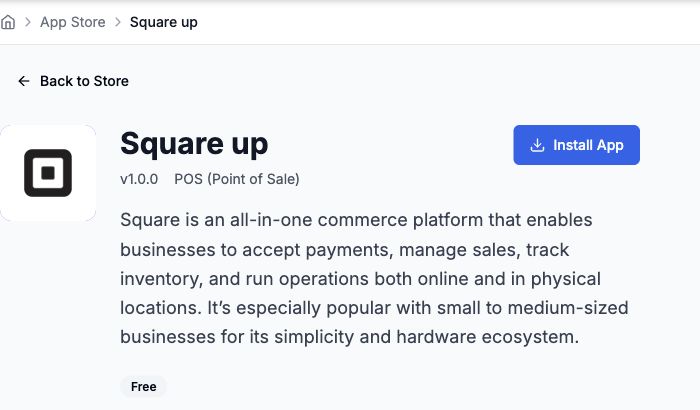 View larger
If Square is already installed, open its widget from My Installed Apps to check the connection instead of installing it again.
Confirm the Connection
The installed app card should show Active. In Open Widget, check that Square itself shows Connected, and review Connection Details to confirm the linked merchant.
An active Crunch app installation alone does not confirm that Square authorisation is complete. If the widget reports a connection problem, read the message and use the troubleshooting guide.
What to Do Next
During onboarding, return to Catalog Import to seed and review an existing Square catalog. For an established workspace, open Settings on the installed app card to review automatic sync choices. Publishing and automatic sync can change Square data, so review your catalog and links before proceeding.
Seed and publish Square during onboarding Review Square sync settings Manage installed apps