
Invite and Remove Team Members
Invite teammates, review pending invitations and manage member access in the selected organisation.
Who is this article for?
Use Members to invite teammates, review invitations and manage access for the selected organisation. The organisation owner manages invitations. Managers, owners and admins can remove non-owner members; suspending or activating a member requires owner or admin permission.
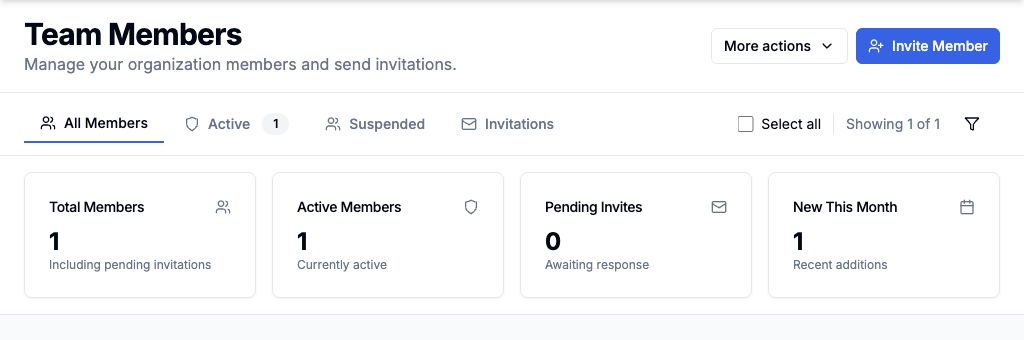 View larger
Invite a team member
Select the correct organisation in the sidebar switcher, then open Members.
Choose Manager, Member or Guest under Role & Permissions, using the roles available to you.
Set Location Access to the locations the person needs.
Optionally add Department and Personal Message, then choose Send Invitation.
Give teammates the access they need for their work. The person joins through the invitation email; sending an invitation does not mean they have already accepted it.
Review pending invitations
Open the Invitations tab in Members. Use an invitation’s actions menu to choose Resend Invitation or Cancel Invitation, where permitted. Confirm cancellation when prompted.
Suspend or remove a member
Find the person in Members and open their actions menu.
As an owner or admin, choose Suspend to suspend an active member, or Activate to restore a suspended member.
As a manager, owner or admin, choose Remove Member to remove their organisation membership and confirm the person and organisation in the prompt.
Wait for the success message. If permission is denied, ask the organisation owner to perform the change.
An organisation owner’s membership cannot be removed with these controls. The current owner cannot suspend their own membership. Removing a teammate from one organisation is different from deleting the organisation itself.
Understand roles and permissions
Review organisation settings
Manage locations