
Location Management
Add, review, and update physical locations from the Locations settings page.
Who is this article for?
Use Locations to maintain the physical sites attached to the current organisation.
Add a location
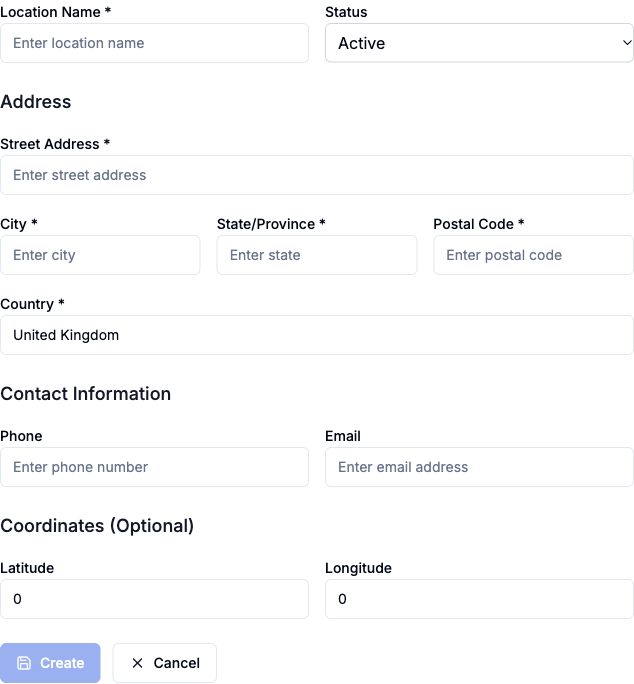
Complete the inline form with Location Name, Status, and the full address.
Add optional Phone, Email, and Coordinates details.
Click Create when you are ready to save the new location.
 View larger
Edit or remove an existing location
Each location card includes icon buttons on the right for:
- Editing the location
- Opening the deletion review for the location
The cards also show the saved address, contact email, and created or updated dates so you can confirm you are changing the correct site.
Review location deletion carefully
Deleting a location affects the records linked to it. The confirmation shows active references and historical records. Where another location is available, Reassign active data to lets you choose a replacement; without one, active references are removed.
Historical records are preserved unless you explicitly choose Also reassign historical records to the replacement. Check the impact before confirming Delete, Delete & Reassign or Delete & Reassign All. The deletion cannot be undone.
If the impact cannot be loaded, choose Cancel and try again before deciding how to handle linked records.
Organisation settings
Manage tax rates